2010/07/18

Apple's History


Salam Anak IT.
Apple's very first logo (1976)

Read their full history here at TheAppleMuseum.com and here to see their products' evolution.

2010/07/02

Tips to Secure Your Password

Salam readers...
"Oooppsssie~ I saw your password tadie jeng~ It was ****** a.k.a semua bintang 6 kali hahaha baik ko tukar password baru jeng..." - Less educated shoulder surfer
Today I would like to share tips on securing or "hardening" your password... I will also list out certain techniques of password stealing... First, you need to know what are activities to be done by the password stealer in order to steal your password... Here are some common activities done by the password stealer:
  • Shoulder Surfing - just like in the picture above, someone is watching things you do with your machine including when entering your password on your keyboard
  • Key-logger - Click here to know more about hardware keylogger and you are advised to read this article as well (only if you haven't). Keylogger basically RECORDS everything that you type on your keyboard including your password
  • Physical access to your computer's surrounding - some people will have their passwords written everywhere nearby their computers so that they don't have to memorise them. But if that password is physically accessible by other people, it would be a disaster...
  • Man-in-the middle attack - as how it sounds like, a man "sitting" in the middle to "READ" any data passed THROUGH including confidential data like passwords
  • Protocol Analyzer - Works just like Man-In-The-Middile but it is more towards an application which reads any packets of data going through a network interface and is able to "catch" any clear text including unencrypted passwords
  • Web Phishing Attack - A fake site which looks similar to the original site which requires you to type in your username and password which will then saying that your password is incorrect and redirect you to the original site where your username and password is already being sent to the fake site's owner
  • Dictionary Attack - Guessing the password with common words found in the prebuilt dictionary
  • Brute Force Attack - It will try every valid combination of words, characters, numbers and even symbols in order to create a string of text which is then to be tested whether it is valid or not. Usually it takes time but with the help of today's high-end machine, it is then another disaster
So now you already have basic ideas on how password stealers will do their mission. It is time for you to learn some tips on how to protect and secure your passwords. Some of these might be useful to you:
  • When creating password, never use a simple word which can be found in any universal dictionary such as "computer" or even "password" itself...
  • Try to put CAPITAL letters instead of making it all in small letters...
  • Use numbers as well!
  • If possible, try to use symbols as well such as !@#$%^&*()_+ dan yang sewaktu dengannya...
  • When you are going to type your password on your keyboard, try to look at your surrounding and make sure there is no one nearby...
  • Know your own machine! Always make sure that your machine is not running any malicious program in order to prevent keylogger (software type) being implemented by other people...
  • Never write your password on a post-it paper or even scrap paper and leave it insecure...
  • Know your physical network! Make sure that you are not connecting to any anonymous internet connectivity...
  • Checking email at cyber cafe is a bad, bad and baaaadddd idea... Not only email... Any activity which requires you to type in your password...
  • If you are surfing the net, make sure that you are entering the valid domain name. For example, if you want to log into you yahoo mail account, make sure you go to yahoo.com, not y4h00.com...
  • Use different password for different accounts...
  • Remember this one last important point... "Easy to remember" is also another meaning of "Easy to be guessed"...
There you go... Simple tips on how to secure and protect your password... Hopefully berguna untuk kitani semua...
If you have questions or opinions, kindly post your comments =) thank you...
Sekian, until next time~
Salam Anak IT.
How less valuable data may become a threat... In other words, cemana bulih data yang "kurang mendapat perhatian" or nya urang kitani "inda kana care" akan menjadi security threat arah kitani...
On this "lesson", I will show you how people with extra-ordinary thinking may use the "scrap" data into something useful. "Something useful" which will be demonstrated here are:
  1. Finding vulnerabilities on web application
  2. Password guessing
DISCLAIMER: Before you do or follow any activities written on this article, please note that any activity that you are going to do next is your own responsibility. This article is just for demonstration. Anak IT will not responsible for any activities that you are going to do based on this article. Do it at your own risk.
So first, we will start with "Finding vulnerabilities on web application"... The most basic step is, find out what application is being used... THEN we can easily find the vulnerabilities with the help of "GOOGLE".
For this example, I choose http://mail.gov.bn, not really a "web application" but more into "mail application" with web-based front-end... How to find what application is used?...

Next... Find any "less valuable" data... What can you find on the page itself?
  • Icon ada tangan "STOP" or our teenagers prefer calling it "talk-to-my-hand" sign hahaha
  • Panji-panji negara...
  • "User name"
  • "Password"
  • "Sign In"
Thats it?... We can't really use the listed data for something... Alright... How about, we see the page's source code? Errr... That might be helping us out... But how?
Since I use Mozilla Firefox, go to View>Page Source or simply press CTRL+U keys at a time... The following window will appear...

There are lots of "less valuable" data you could find in there especially HTML Tags... But there is something which I "think" might be used for the activity... As you can see on the image above, I highlighted the area and copy it into clipboard... Then you might guess what I would do next! Obviously...

Yuuup~ That's right~ I googled it... And as you can see, there is a word which really catched my eyes in instant... A word "domino"... But, apakan tue?... Nevermind... Just continue browsing through the page...

Ok... Another "domino" but now it is "Lotus Domino".... Lotus... Macam pernah mendangar... Oh... Now I remembered... "Lotus Symphony", an office application by IBM. But... Does it mean this "Lotus Domino" is also part of IBM's products? Maybe yes... Meybe not... So next step is to directly google "Lotus Domino"... I found out that it is also one of the IBM's products... Other than google it up, I also google for its image... Surprisingly, I encountered that there is a common about this "Lotus Domino" image that I found through Google with the demonstrated page... Apanah?...

It is the icon used on the page or also known as page's "favourite icon"... From there we know that the demonstrated page uses IBM's "Lotus Domino" mail application. Good thing is now we know such application exists and might want to try it out next time...
Other than the icon, I also found the following image:

It looks way much similiar with the demonstrated page and so no doubt about application that is being used by the page...
Now we move on into how bad people uses "less valuable" data for Password Guessing...
I will use "pisbuk" profile page as an example to this demonstration...
Imagine there is this one buajah namanya "Hjh Lintuk"... Ia tedapat pisbuk... Her information is as follows:

For us, we might just think that the information listed on her profile page is just an ordinary info and so we DON'T CARE... But bear in mind that for bad people, it is TOO VALUABLE for them to trigger an activity...
As you can see from the information given on her profile page, it is easy for the bad people to guess her passsword... IF I am the bad people, here is the list of possible passwords I might guess:
  • lintuk107
  • lkuncang
  • 1071962
  • neverold
  • imyouth
  • 987654
  • 00987654
  • l987654k
  • babylintuk
  • babylintuk107
  • 107babylintuk
  • baby107lintuk
  • nyubarang
  • sgnyubarang
  • dan yang sewaktu dengannya...
Can you imagine if one of the passwords listed is actually her valid password?... =) sama-sama tane fikirkan...
So I guess that is it for today, semoga dapat pengajaran bersama serta dapat menimbulkan rasa "alert" dikalangan kitani...
Sekian, wabillahittaufiq walhidayah, wassalam...

2010/06/29

Most Common Password in Cyber Threat


Salam Anak IT Readers~
Tiba masanya, pantun dijunjung,
Pantun kini, karya satu cerita,
Cerita yang panjang, nada penghujung,
Mun catu tantu ku pindikkan tah saja~
Here is the list of most common passwords in cyberworld...
  • 123456
  • abc123
  • qwerty
  • iloveu
  • password
  • pass
  • *IC Number
  • 12345678
  • 123
  • manutd
  • liverpool
  • letmein
  • iwantu
  • soccer
  • 111111
  • enter
  • imissu
  • hello
  • aslplz
  • computer
  • keyboard
  • guitar
  • *Car's plate number
  • hannah
  • montana
  • princess
  • pwincess
  • cool
  • imhot
  • stabber
  • *First name
  • mypass
  • hotmail
  • aaaaaa
  • whatever
  • uknowit
  • secret
  • kembayau
  • piasau
  • lovehubby
  • *Country Name
  • *Phone Number
  • chelsea
  • flower
  • redrose
Anything else? If ada ketinggalan, mind to post it through your comment =) Thanks~
"CompTIA Security+ is an international, vendor-neutral certification that proves competency in system security, network infrastructure, access control and organizational security.

The CompTIA Security+ certification designates knowledgeable professionals in the field of security, one of the fastest-growing fields in IT. Security threats are increasing in number and severity, and the gap between the need for security professionals and qualified IT personnel is the largest of any IT specialty, according to a 2008 CompTIA study. Even in a troubled economy, most businesses plan to maintain or increase their investment in security."
 - CompTIA

Security+ Certificate

For further information on the Security+ certification, go to CompTIA's website at http://www.comptia.org/certifications/listed/security.aspx or simply click here. Those who need some guidance on the certification, you may approach me.
As Anak IT's motto, "Mun rotan ganya sejangkal, jangan mendaluh lautan dalam" encouraging you to improve and further your skills.

Sekian, semoga biskita mendapat inspirasi dan juga manfaat. Wabillahittaufiq walhidayah...

2010/06/26

Microsoft Security Essentials


Salam Anak IT.
Good news for Windows Operating System users.
"Microsoft Security Essentials provides real-time protection for your home PC that guards against viruses, spyware, and other malicious software.

Microsoft Security Essentials is a free download from Microsoft that is simple to install, easy to use, and always kept up to date so you can be assured your PC is protected by the latest technology. It’s easy to tell if your PC is secure — when you’re green, you’re good. It’s that simple.

Microsoft Security Essentials runs quietly and efficiently in the background so that you are free to use your Windows-based PC the way you want—without interruptions or long computer wait times."
 -Microsoft
The key features are:
  • Comprehensive malware protection
  • Simple, free download
  • Automatic updates
  • Easy to use
The software is free to use as long as you use GENUINE Windows Operating System. Download it hereand enjoy this free anti-malware on your system.
Sekian~

2010/06/21

How To Find Your MAC Address in Ubuntu?


Salammmmm readers~
As promised from my yesterday's post on "How to find your MAC Address in Windows (XP)", today I will continue the tutorial on how to find your MAC address in Ubuntu Operating System. Straight forward ja k...
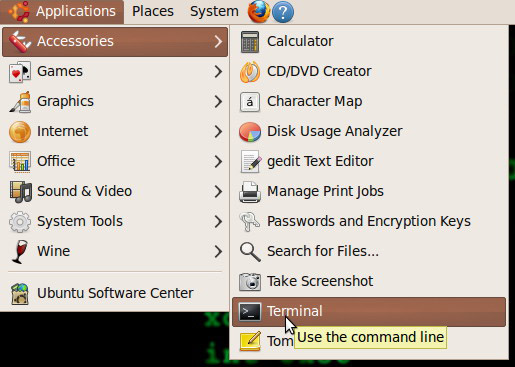
Go to Applicaions>Accessories>Terminal

Terminal in Ubuntu OS is just like Command Prompt in Windows OS. As mentioned in my previous article, you need to type "ipconfig /all" in the Windows OS's Command Prompt. In Ubuntu, bunyinya kan sama tapi inda serupa. In the Ubuntu's Terminal, type the following string:
ifconfig
and then press Enter key on your keyboard.

Information regarding your network's configuration will show up. If in Windows OS you need to look for "Physical Address", in Ubuntu OS you need to look for "HWaddr" which I believe stands for "Hardware Address". MAC address' standard format is 00-00-00-00-00-00.

Any questions or additional points you want to share, kindly use the comment section on this article =)

Until next time~ Wabillahittaufiq walhidayah...

2010/06/20

How To Find Your MAC Address in Windows XP?


Salam readers...
Media Access Control address or best known as MAC address, is an address uniquely assign to any network physical device adapter such as Network Interface Card (NIC), Wireless Router, even Smartphone (with Wi-fi capable) have one...
Other than MAC address, it is also known as:
  • Ethernet Hardware address
  • Network Hardware address
  • Physical address
We do not usually bother to know what is the MAC address for the network device that we are using as long as "dapat dipakai". However, there are certain cases where you need to know your network device's MAC address. One of good examples will be when you deal with "MAC filtering" on your wireless router.
So follow these few steps to look for your machine's (not exactly machine, but network adapter) MAC address...
First, go to Start>Run or simply press WINDOWS+R keys on your keyboard. When the "Run" window appears, type "cmd" and click OK button.

On the command prompt, type the following string:
ipconfig /all
and then press Enter key on your keyboard.

You will see information regarding your networking configurations. One of them will be "Physical Address". The string next to it with 00-00-00-00-00-00 string format is your adapter's MAC address.

There you go... That is how you find your MAC Address in Windows (XP) Operating System... Tomorrow I will post a short article on how to find your MAC address in Ubuntu Operating System InsyaAllah...
Until next time~ wassalam...

2010/06/19

FOSS - Blender


Salam Anak IT.
Today's FOSS (Free and Open Source Software) will be Blender.
No... Not THAT blender... But THIS Blender...

Based from their offcial website, "Blender is the free open source 3D content creation suite, available for all major operating systems under the GNU General Public License".
For those who are already familiar with 3DMaxStudio, Maya 3D, Cinema 4D, you might want to try this out.
Here are some Blender's screenshot examples:


There are some short good movies created with Blender. One of them is Big Buck Bunny. I also found a good trailer here.

Looks realistic? Again created with Blender. More at Blender Art Gallery.

Download Blender now here and see if you can think in X,Y and Z axises =) enjoy~

2010/06/17

Networking Cable


Salam~
In computer networking, there are 3 major types of networking cable:

1. Coaxial Cable
(Courtesy of Wikimedia.org)
Coaxial cable... Pernah dangar? Biasanya kana gunakan untuk aerial TV. Urang jaman lama kilala banar nie warai ah barang pemainan bisdia lagi dulu nie hahaha urang jaman ane betukar astro dah atue pun kana pasangkan kalie yetah jarang meliat warai miani ane... So... In computer networking, cable ani pun inda jua ketinggalan kana gunakan... In my previous article on "Common Network Topology", there is one topology called Bus Topology. This topology uses Coaxial Cable as its main transmission media which is also called as Thinnet or Thicknet.

2. Twisted-pair Cable
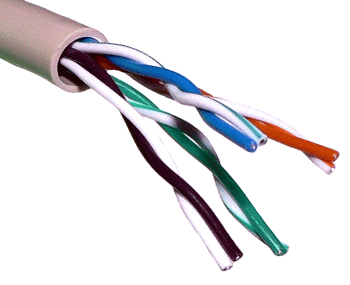
(Courtesy jmu.edu)
There are two types of Twisted-pair Cable: Unshielded Twisted-pair (UTP) and Shielded Twisted-pair (UTP)
The one in the picture above is Unshielded Twisted-pair. Click here if you want to see Shielded Twisted-pair Cable.
When cramped to its socket, the cable looks like telephone cable but wider. If you are using e-speed through cable connected to your router right now, cuba cabut dan liat berapa warai biskita dapat kira. If 8 semuanya, iatah udah tue...
Unshielded Twisted-pair (UTP) is divided into certain categories:
  • Category 1 - Traditional telephone cable. Carries voice but not data
  • Category 2 - Certified UTP for data transmission of up to 4 megabits per second (Mbps). It has four twisted pairs
  • Category 3 - Certified UTP for data transmission of up to 10 Mbps. It has four twisted pairs
  • Category 4 - Certified UTP for data transmission of up to 16 Mbps. It has four twisted pairs
  • Category 5 - Certified for data transmission of up to 100 Mbps. It has four twisted pairs of copper wire
  • Category 6 - Offers transmission speeds up to 155 Mbps
  • Category 7 - Category 7 is a proposed standard that aims to support transmission at frequencies up to 600 MHz

3. Fiber Optic Cable
Last but not least, Fiber Optic Cable. Right now, It is considered as the most secure networking cable due to minimum interference and hard to "vampire tapped". It uses light to transmit data and can deliver high bandwidth. This cable is the one which links us to other part of the world through "kabel dasar laut" or Submarine Cable System. Brunei is connected to other part of the world through Asia-American Gateway (AAG) and South-East Asia - Middle East - Western Europe 3 (SEA-ME-WE3). I heard there is another one but is not "publicize".

Until next time~ Sekian.
P/S: Since Anak IT is now "open to public" haha so do drop comments or suggestions alright =) Thank you.

2010/06/09

Customising your folder in Windows

Assalam Anak IT Readers~

Today I will tell you miana kan "customise" folder biskita especially your favourite folder by putting any image that you like to be as its background image. The following picture illustrate the typical and "boring" folder...


The first thing that you need to do is, put your favourite picture inside your favourite folder. For this example, I will use a folder named "AnakIT" which I located in C drive and so the folder's full address is "C:\AnakIT".

Using any text editor (such as notepad or wordpad), type the following code:


Malas kan taip? Hahaha copy it from here then...


Replace your_image.jpg with the picture's name that you have selected earlier. In this case, I use "Img01.jpg" to be the background of the folder.

For the IconArea_Text, the "0x00FFFFFF" represents white colour. I use white colour for my text because my background picture is dark. Mun pakai itam kang langsung pajah inda lagi nampak apa-apa bwauhuwhuahwa but just in-case you want the text to be in black colour, use "0x00000000" instead. The last 6 characters are actually representing RGB colour code so if I use "0x0000FF00", the text will be in green colour.

After you are done, save the text document into your folder and name the file as "desktop.ini". Set the "Save as type:" to "All files" and click the "Save" button.


The next step will requires you to run a command. Go to Start>Run or simply press Windows+R keys on your keyboard


Type the following command:attrib +s "your folder's full address"

Since my folder is "C:\AnakIT", so I need to type:attrib +s "C:\AnakIT"


Press "OK" button and go to your customised folder and see whether if it does work or not.


Selamat mencuba~

Sekian, wassalam...