Showing posts with label Office. Show all posts

2011/04/08

A Different Way of Presenting


With so many things like assignments and presentations going on in Uni life, you often tend to stumble upon the thought of how to make your presentations much much more interesting. Amazingly, a few days ago, for a certain lecture, I was introduced to a new way of presenting by my fellow peers. They made their presentation very dynamic with words moving here and there.
At first, I thought they had made it from scratch using Flash but then I noticed a logo at the bottom left corner of the screen. 
Now I know I may be a little late on this, but for those who have never heard of this before, Prezi is basically a web-based presentation app launched somewhere in May 2008. So it has pretty much been around for the past 3 years or so. It's easy to access as long as you have the internet, simply go toprezi.com. The website basically looks like this

I was wow-ed by how you can just jump from word to word and zoom in and out easily with the click of a mouse. The presentation would just be on a wide canvas instead of separate slides, like on a Powerpoint presentation. However, in order to start making your own prezis you will have to sign up and upon signing up, this will be asked
In addition, you can also download prezi on your desktop, or your iPad, so that you can just work-on-the-go. Unfortunately, the creators of prezi have yet to release a prezi app for Android, but they have mentioned that they are working on it. Below is a sample of a completed prezi.
I will give further detail after I have completed experimenting with the site. That's all for now folks.

2011/01/18

Selecting Text


Salam Anak IT reader(s),
Here I would like to share some brief or common knowledge on methods of selecting text or as you may usually say it ‘highlighting text’ in Microsoft Word using your… mouse!

YEAYYYY!!! DRAG AND HIGHLIGHTTTT!! *dramatic*

No no no no no papoy! That’s not what I am going to talk about. It is not wrong though =) That, I can say is the most fundamental method of selecting text in word (= It would be rather tiring if you drag and highlight most of the time. No? Especially when you are dealing with pages of document to modify *cough* melawakan assignment punya report *cough* then again there are a lot of ways to select text in document and here is one of the many way.
So, without further ado… Here is the first method…
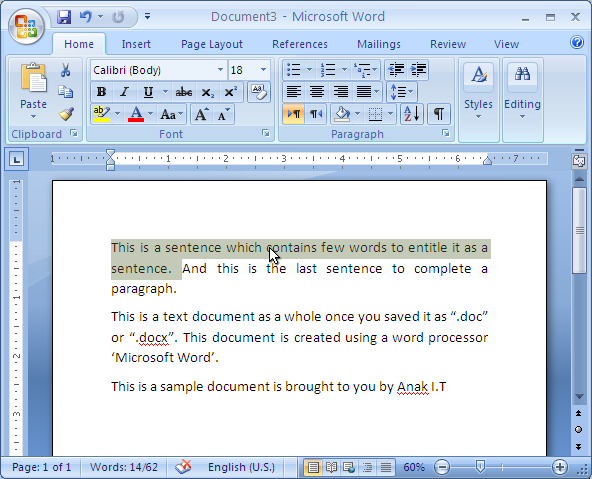
but before proceeding, senyum and buka MS Word... below is a sample text document that I am going to use throughout this article.
Now... we are ready to continue...
-take note on the position of my cursor/mouse pointer/arrow throughout the article-
To select a Word /Perkataan – double click on the word you want to highlight
as you can see above. That is a result of double clicking the word 'sentence' in the paragraph.
To select a Sentence/Ayat – hold the ctrl key and click anywhere in the sentence you want to select and the result of it is somewhat like what i have below...
To select a Paragraph/Perenggan – triple-click anywhere in the paragraph
Another method of selecting text is by using the selection bar. Selection bar is on your *fikir skajap kiri or kanan* I think and I am sure it is on your kiri/left hand side of the document. (<-- that side). When you place your cursor on that side of the text, your mouse cursor will change to right pointing arrow.
as you can see above... the white/highlighted side is the selection bar. And do you realize? cursor berubah arah macam kana tiup angin dari sebalah kiri at that area. Try and see it on your MS Word.
To select a Line of text – Katik sekali pakai tetikus bahagian kiri text yang kan di highlight
as you can see it highlights sebaris atu saja.
To select a Paragraph/ Perenggan – Katik dua kali arah bahagian kiri perenggan yang kan di highlight
And last but not least is to select the Entire document – Katik tiga kali arah selection bar atau takan ctrl(on your keyboard) and katik sekali di mana mana arah selection bar atu.
Atu ta saja dulu for now. Hope it will benefit you or anyone you share this with and may inspire you in any ways. (= feel free to comment. Kalau salah tolong betulkan. Kalau ada pertanyaan jangan malu untuk bertanya, InsyaAllah ANAK IT will try the best of the best to help.
Sekian.

2010/12/09

Change Case in MS Word


Hi readers! Just a brief one.
Have you ever wonder how to change from lower case to upper case or vice versa in MS Office Word? It is really simple. Highlight the targeted word/phrase and then press Shift+F3 keys on your keyboard simultaneously and examine the output. Here are few examples:
First, highlight the text.

Then press Shift+F3. You will see that only the very first letter is changed to uppercase (or capitalised).

When you press the combination keys one more time, all of the selected text will be capitalised.

Try to repeat the process and see what will you get.
Until next time, happy trying~

2010/04/07

Letter is not A4!


Assalam...
Have you ever print out something that you were not expected it to be? For example, menyingit sebalah tia or the last paragraph arah bawah sekali of the page suddenly menyubarang arah next page? sedangkan arah screen inda cematu? Pernah? Puas?...
Yetah yang kan dikongsikan ne... Tapinya sebelum atue bakunyanyang tah dulu tue aa... Al-kisah~ *mau tia jua hahaha*
Pada suatu hari, Awang Pulan bin Paji Pulan meminta tolong kepada saya untuk mem"print" dokumen beliau yang URGENT untuk dihadapkan ke mesyuarat yang bakal berlangsung lebih kurang EMPAT minit lagi. Beliau berasa resah dan juga gagau ati kerana ink printer beliau telah habis dimakan waktu bersama teh hijau panas. Dengan me"lap2" paluh beliau berkata:
"Ji... Tulung ku ah... Print kan ku... Ada ku ngambil karang"
Saya pun dengan senyuman membalas balik permohonan beliau:
"Bah... Print saja ne? Ok dah semua kah? Nada salah? Full cek udah?"
Beliau dengan pantas berkata dengan suara chipmunk:
"Don kawari tue ji... Print saja selajur... Tengkiu ah..."
Dengan pernyataan tersebut, saya pun tanpa membuang masa terus takan CTRL+P dan memprint dokumen beliau yang lebih kurang EMPAT PULUH LEBIH MUKA SURAT... Tidak lama kemudian, Si Pulan datang untuk mengambil dokumen tersebut dan mengembalikan Pengdrive beliau di atas mejanya... Jeng jeng jeng... Selepas beliau habis mesyuarat:
"Jeng... Apa tue ko print ah... Inda beterikah bah usulnya... Belarian bah ayat2 nya... Kana tiup angin pakah printermu atue ji..."
Saya dengan muka eksen2 tercangang berkata:
"Mengapa ya? Ko jua barucap OK udah tadie..."
Semak punya semak akhirnya kedapatan yang ia punya dokumen alum SET ke A4... Masih lagi LETTER... So... Salah siapa?...
For those yang masih "nda paham" or saying "aaapakan...", I will elaborate more for you ESPECIALLY to Awang Pulan.
By default, application such as Microsoft Word will set your paper size to LETTER size. This is because arah United State dan yang sewaktu dengannya menggunakan LETTER size paper for their office's formal use... So I want to ask you... Dimana ada bejual LETTER size paper di Brunei?... Maybe ada but cuba liat paper yang tedapat arah printer kamu... Apa sizenya? LETTER? Cuba cek banar-banar... The standard paper size in Brunei is A4... NOT letter size...
Then... If biskita tau sudah kan di print arah A4 size paper, mengapa set rah computer biskita paper size other than A4?... Atue sama jua macam biskita kan membali Aing Pisau tapi yang biskita ambil Aing Longan... Inda jua "ngam" tue... Paham inda? Mun masih jua inda paham, biskita disyorkan untuk menalipaun Ambulan suruh defragment "harddisk" biskita huhuhu...
Ok... If those yang paham but inda tau miana, I will tell you how to change the paper size in Microsoft Word 2007...
Before biskita start typing arah MS Word 2003/2007, PLEASE MAKE SURE what size paper are you working on... For this article I will only show you how to change the paper size in MS Word 2007. For those yang makai MS Word 2003, maybe other contributors might help you on that soon...
First, open your MS Word 2007, then go to "Page Layout",
Second, look for "Size" on the "Page Setup" ribbons,
Change from Letter to A4 size...
Walaaa~ now you will print out EXACTLY apa yang meluah dari screen monitor... So... Awang Pulan miana?... Ok? Hopefully all readers (especially students yg buat assignments etc.) do take this as a SERIOUS matter... Jangan membuang keratas only for such small mistake... Support GREEN ICT... Not encouraging people to cut more trees... Sekian... Wassalam...
P/S : "Don kawari" = "Don't worry" hahahaha spiking pisin buah Tibadak Nangka Kawin...